Accessible Document Sharing: How We Share Documents is Important For Accessibility

For disabled people, the small frictions of everyday digital life can quickly add up. Whether it’s a form that won’t work with a screen reader or a document that can’t be navigated by keyboard, these everyday barriers can have real consequences.
People can lose privacy, control and independence over everyday tasks.
One barrier that rarely gets much attention is the way documents are shared. It sounds like a small detail, but it can make a huge difference to whether someone can access information independently.
How Inaccessible Document Formats Lock Disabled People Out
Documents are woven into almost every part of modern life. Job applications, tenancy agreements, healthcare letters, benefits forms and official correspondence all arrive as digital files. Most organisations assume everyone can open them, read them and respond without difficulty.
A document in the wrong format may be completely unreadable to someone using assistive technology. A process that requires printing, signing by hand and scanning back excludes anyone who cannot easily do those things. The information may be perfectly clear to the person who sent it, yet locked away from the person who needs it most. The barrier isn’t the document. It’s the way it has been designed and shared.
A study of 185 assistive technology users across 14 countries found that 41% believed more than half of all PDFs they encountered were not correctly tagged for accessibility. A further 86% needed to read HR, healthcare and fillable form PDFs as part of their working lives. These are not edge cases.
For benefits claimants, the consequences can be serious. The DWP was found to be in breach of equality laws after inaccessible PDF and letter formats locked blind and partially-sighted claimants out of their own cases. Claimants reported that screen reader software could not read scanned documents they were sent, meaning they could not verify the accuracy of forms they were being asked to sign. The format of a document can determine whether someone can access information, claim benefits or manage their own affairs independently.
Sense, the UK deafblind charity, states clearly in their policy work that “when applying for benefits, disabled people should receive documents in the formats that they say are right for them.” The gap between that principle and current practice remains wide.
How Modern PDF Sharing Removes Barriers for Disabled Readers
Modern approaches to sharing PDF documents allow people to read, comment on and respond to files without printing, scanning or wrestling with awkward workflows.
Try to remove any extra steps people may need to take to read your document the way they want to.
Think about an urgent benefits form that has to be printed, signed by hand and scanned back. If you can’t grip a pen, don’t own a printer or rely on voice recognition software, what should take five minutes suddenly depends on somebody else being available to help.
Being able to complete that same form on a computer, tablet or phone using assistive technology means people can deal with it themselves, when it suits them, without having to explain their situation to anyone.
AbilityNet’s digital accessibility resources and their free guide to creating accessible documents offer practical, straightforward help for organisations wanting to get this right. Their long-standing principle, that technology should adapt to people, not the other way around, is exactly what better document sharing delivers.
Why Accessible Documents Matter For Privacy
Needing help to complete paperwork means giving someone else access to personal financial, medical or legal information that many people would prefer to keep private.
Broadcaster and disability rights advocate Matthew Kayne, who lives with cerebral palsy, has written about spending hours completing a benefits form using adaptive equipment, only for it to time out and erase everything. As he says, “Online forms are not just digital paper; they are gateways to rights, benefits, and dignity.” Accessible documents help people deal with those everyday responsibilities without giving up their privacy or control.
Simple Ways to Make Documents More Accessible
Accessible documents are usually the result of small decisions made throughout the writing and publishing process. The following recommendations focus on practical changes that help more people read, complete and return documents independently.
Writing Accessible Documents: A Practical Checklist
Most improvements come from small decisions made while you’re writing. Together they make a real difference for people using screen readers, keyboard navigation or other assistive technology.
Cognitive accessibility deserves equal attention. Many people living with dyslexia, ADHD, autism or an acquired brain injury find dense, complex text just as much of a barrier as a poorly tagged PDF. Our guide to making web content easier to read covers readability principles and plain English tools in more depth.
1. Use Real Headings, Not Bold Text
Making text big and bold creates a visual heading, but a screen reader ignores it. Use the built-in Heading 1, Heading 2 and Heading 3 styles in Word, Google Docs or your CMS. This creates a structure that allows screen reader users to skip directly to the section they need.
2. Write Descriptive Hyperlinks
Many screen reader users pull up a list of links to navigate a page quickly. Hearing “click here” repeated several times tells them nothing. Every link should describe exactly where it goes.
- Avoid: Download our guide by clicking here.
- Better: Download our Document Accessibility Guide (PDF).
3. Add Alt Text to Images
For every photograph, chart or graphic, add alternative text that briefly explains what it shows — for example: “Line graph showing a 20% increase in website traffic over six months.” If an image is purely decorative, mark it as decorative so screen readers skip it.
4. Choose Readable Fonts and Strong Contrast
Fonts like Arial, Calibri and Verdana are easier to read than decorative typefaces. Black text on a white or off-white background is the safest choice. Light grey text on white is a common problem for people with low vision.
5. Use the Built-in List Tool
Always use your word processor’s bulleted or numbered list function rather than typing dashes or numbers manually. Screen readers announce properly formatted lists correctly, so users know how many items to expect.
6. Don’t Rely on Colour Alone
If critical information is marked only by colour, some readers will miss it entirely. Instead of “deadlines are highlighted in red”, write: Important: The final deadline is 30 June. Colour combined with clear text works for everyone.
7. Write for Cognitive Accessibility Too
Screen reader compatibility is only part of the picture. People with dyslexia, ADHD, autism or acquired brain injuries can struggle with long sentences, jargon-heavy paragraphs and dense blocks of unbroken text.
- Keep sentences short — one idea per sentence where possible
- Use everyday words and explain any technical terms on first use
- Break long sections up with subheadings, bullet points and white space
- Avoid passive voice — active sentences are easier to process
- Left-align text rather than justified, which can create uneven spacing that disrupts reading flow for dyslexic readers
These changes cost nothing and benefit a far wider audience than most people expect — including anyone reading quickly on a phone or under pressure.
How to Share Documents Accessibly: Six Habits That Help Disabled Users
A well-written document can still become a barrier if it’s shared in the wrong format. These habits cover how documents are exported, sent and completed.
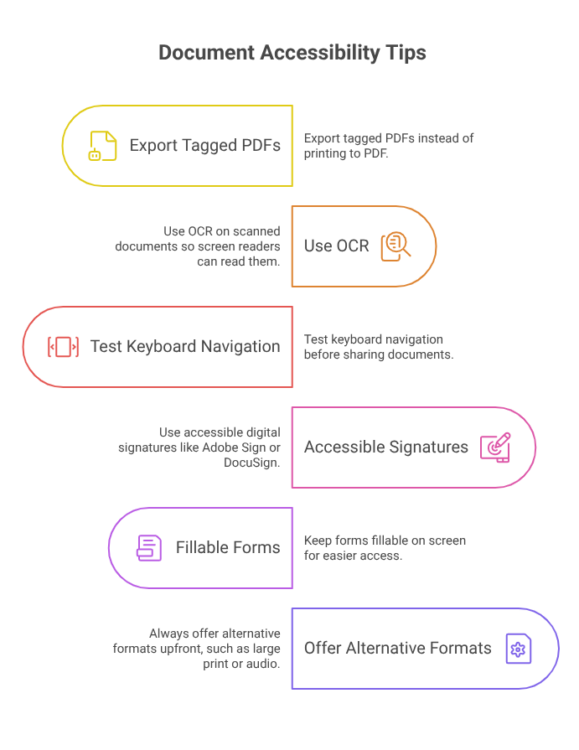
1. Export Tagged PDFs — Don’t Print to PDF
Always export directly from Word or Google Docs with document structure tags enabled. These hidden tags tell screen readers where headings, paragraphs and lists begin and end, making the file navigable rather than just a block of text.
2. Use Searchable Text Instead of Scanned Images
Not all PDFs contain readable text. If you scan a paper document or use a photocopy as the basis for a PDF, the result is often just a series of images. While the words are visible to someone looking at the page, a screen reader can’t interpret them because, to the software, they’re simply pictures.
This is a common frustration for blind and visually impaired users. As one member of the r/Blind community explains: “These PDFs are essentially images of text and have not undergone OCR, preventing screen readers from accessing the text.” Another adds: “Every screen reader will have trouble with a PDF if it is not formatted right — that’s something the source of the PDF has to do when making them.”
Optical Character Recognition (OCR) solves this problem by analysing a scanned page and converting the visible letters into searchable, selectable text that assistive technology can read. Most PDF software, including Adobe Acrobat, Microsoft Lens and many office scanners, includes OCR as a built-in feature.
Where possible, export PDFs directly from the original Word document or Google Doc rather than scanning a printed page. If you only have a scanned copy, run it through OCR before sharing it so the text can be recognised by screen readers, searched and copied.
3. Test Keyboard Navigation Before Sharing
Many disabled people use a keyboard, switch device or mouth stick rather than a mouse. Press Tab through your document. The cursor should move smoothly through every link, button and form field without getting stuck or jumping over important sections.
4. Use Accessible Digital Signatures
Requiring someone to print, sign and scan a document creates barriers for a large number of disabled people. Platforms like Adobe Sign and DocuSign allow signing by typing, uploading an image or using assistive technology commands, cutting out several steps that often create problems in the first place.
5. Keep Forms Fillable on Screen
If a form needs to be completed, make sure it can be filled in digitally on a computer, tablet or phone. Requiring handwritten responses assumes physical dexterity and access to a printer that not everyone has.
6. Offer Alternative Formats from the Start
A blind person may prefer a Word document or HTML page. Someone with ADHD may find plain text much easier. Adding a single line — “If you need this document in a different format, including large print, plain text or audio, please let us know” — takes seconds and makes it clear accessibility was considered before anyone had to ask.
Accessibility Should Be Built In At The Start
The wider lesson is that accessibility works best when it’s considered from the beginning, not added later to fix problems that could have been avoided.
Accessibility isn’t about creating one version for disabled people and another for everyone else. It’s about designing documents that work well for as many people as possible from the start.
This idea sits at the heart of inclusive design: creating products and services that work for as many people as possible from the outset, rather than expecting individuals to request adjustments after barriers have already been created.
Research published in Weave: Journal of Library User Experience argues that PDF files often introduce avoidable accessibility barriers and recommends considering more flexible formats where appropriate. That reflects a broader principle.
Whether you’re creating a policy document, a tenancy agreement or a healthcare form, the goal is the same: make it possible for as many people as possible to read, complete and share it independently. That’s better for disabled people, and it’s better design for everyone.
FAQ about sharing accessible documents
What makes a document accessible?
An accessible document can be read and navigated using assistive technology such as screen readers, keyboard navigation and voice recognition software. It uses proper heading structures, searchable text, descriptive links, alt text for images and accessible form fields.
Why are inaccessible PDFs a problem?
Many PDFs are created as scanned images or without accessibility tags. This can stop screen readers from recognising the text, making important information inaccessible to blind and partially sighted people.
How can organisations improve document accessibility?
Simple improvements include exporting tagged PDFs, using Optical Character Recognition (OCR) for scanned documents, creating fillable digital forms, testing keyboard navigation and offering alternative formats such as Word, HTML or large print.
Why do accessible documents improve privacy?
When people cannot access documents independently, they may have to ask someone else to read or complete forms containing personal financial, legal or medical information. Accessible documents reduce that need.
What is OCR and why is it important?
Optical Character Recognition (OCR) converts scanned images of text into searchable, selectable text that can be read by screen readers and copied by users.
What is a tagged PDF?
A tagged PDF contains hidden structural information that tells assistive technologies where headings, lists, tables and paragraphs begin. Without these tags, screen readers may struggle to present the document in a logical reading order.
Are accessible documents only useful for disabled people?
No. Clear structure, searchable text and digital forms benefit everyone, including people using mobile devices, older technology or slow internet connections.
